1
Open your Shopify admin in a new tab. You need to be the store owner or a staff member with permission to manage apps.
Open Shopify admin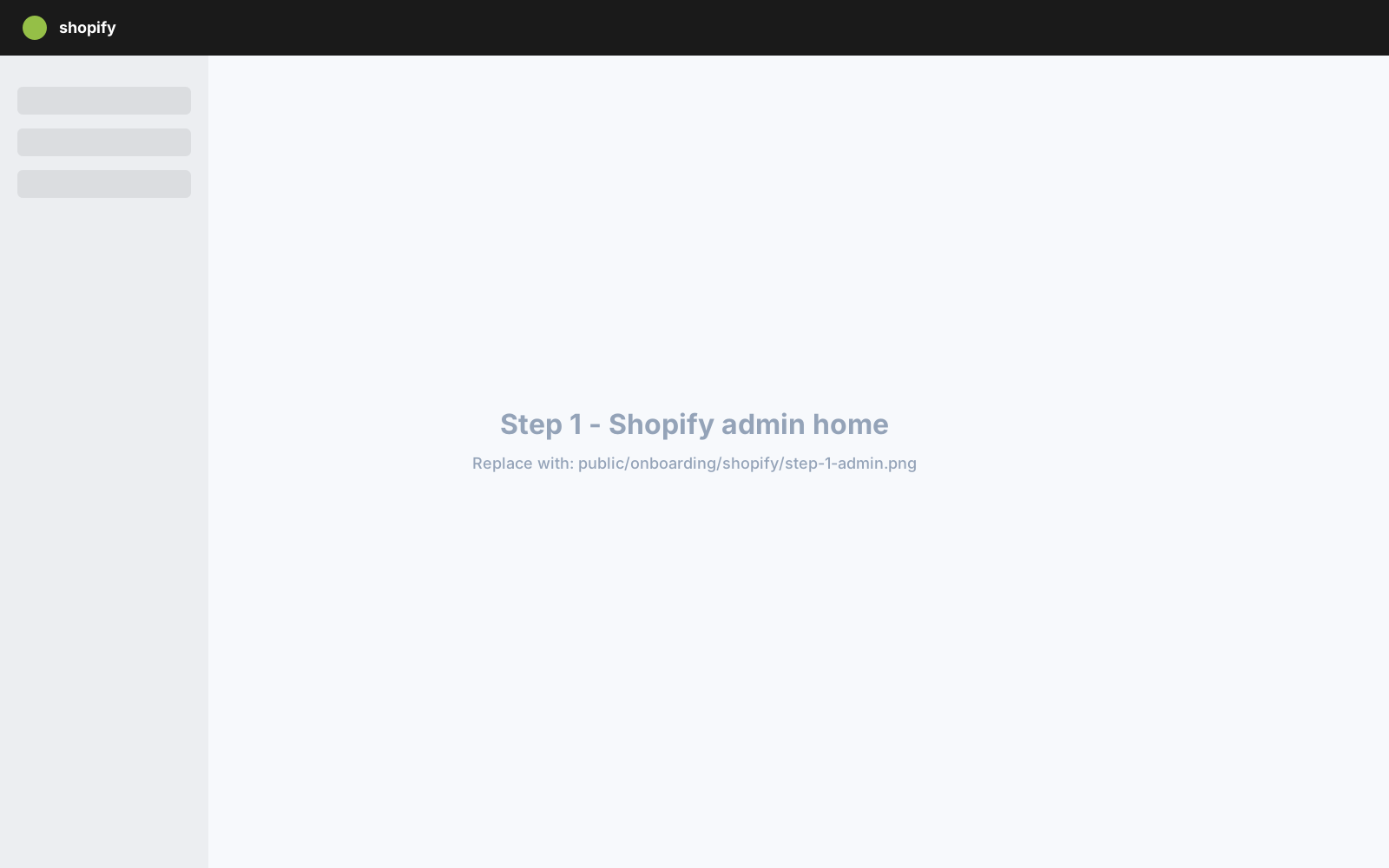
A step-by-step walkthrough for creating a Shopify Custom App and pasting the access token into your DR PREPPER USA portal. You stay in control - revoke access from your Shopify admin any time.
Shopify stopped allowing new legacy custom apps on January 1, 2026. This guide works if your store had custom-app development enabled before that date - otherwise the steps will dead-end at a deprecation banner.
How to tell in 10 seconds: open your Shopify admin → Settings → Apps and sales channels → Develop apps. If you see a warning banner mentioning "January 1, 2026", this guide won't work for you. Email info@drprepperusa.com and we'll onboard you directly.
Email us for help connectingFollow these in order. Open each linked page in a new tab so you can keep this guide on screen.
Open your Shopify admin in a new tab. You need to be the store owner or a staff member with permission to manage apps.
Open Shopify adminFrom your Shopify admin, go to Settings → Apps and sales channels → Develop apps. (If you've never created a custom app before, click the link in step 3.)
Open Develop apps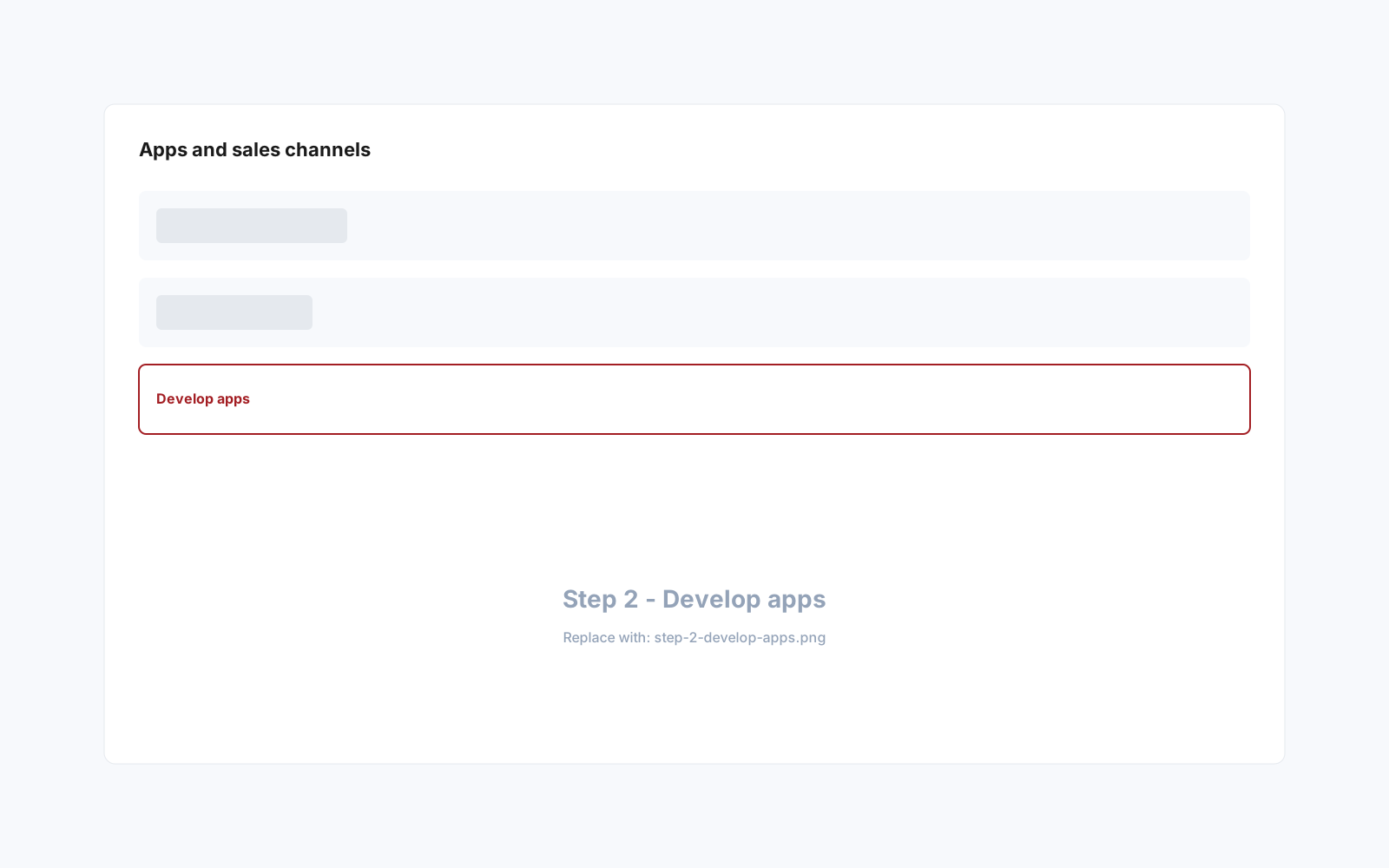
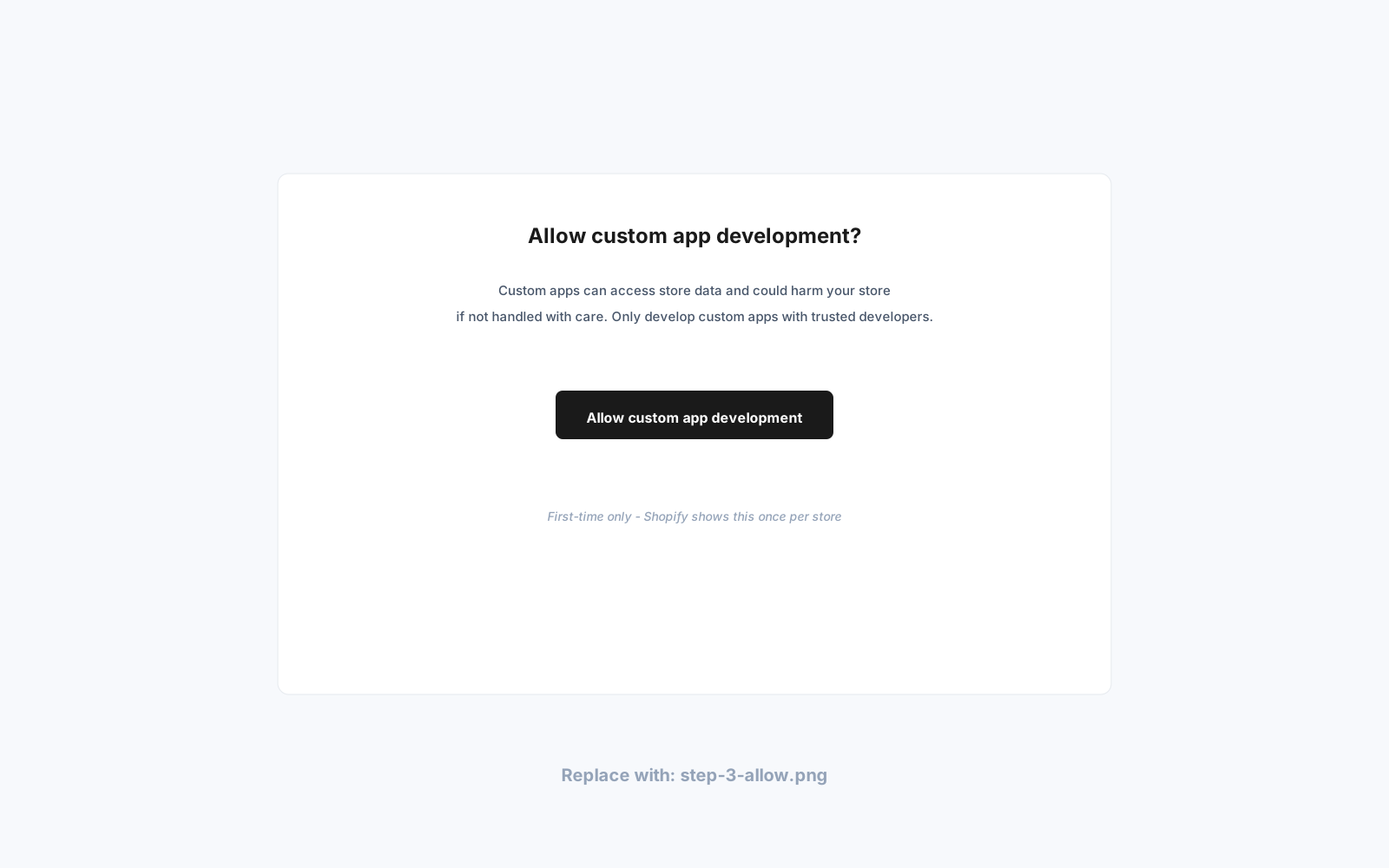
If your store enabled custom app development before January 1, 2026, you'll see an Allow custom app development button on first use - click it. If your store was created or hasn't enabled custom apps before that date, you'll see a banner saying 'As of January 1, 2026, you can no longer create new legacy custom apps' - in that case, this guide won't work for you. Email info@drprepperusa.com instead and we'll get you connected directly.
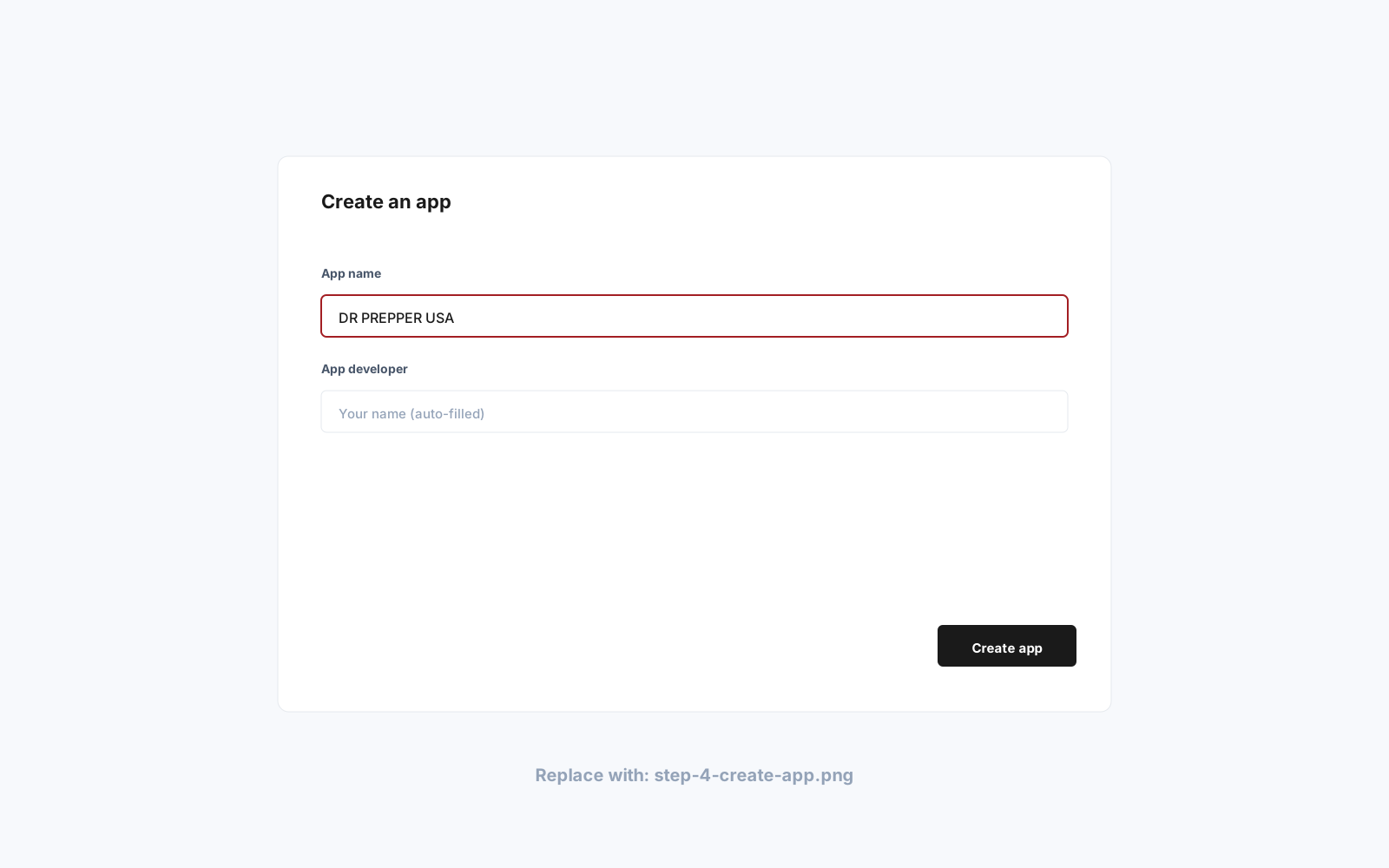
Click "Create an app". Name it DR PREPPER USA. Leave the developer field as your name. Click Create app.
On the app page, go to Configuration → Admin API integration → Configure. Enable these six scopes, then click Save:
read_orders - View incoming orders so we can fulfill themread_products - Read your product catalog and SKUsread_inventory - Read inventory levels for accurate countsread_fulfillments - See existing fulfillment statuswrite_fulfillments - Push tracking numbers back when we shipread_shipping - Read your shipping zones and rates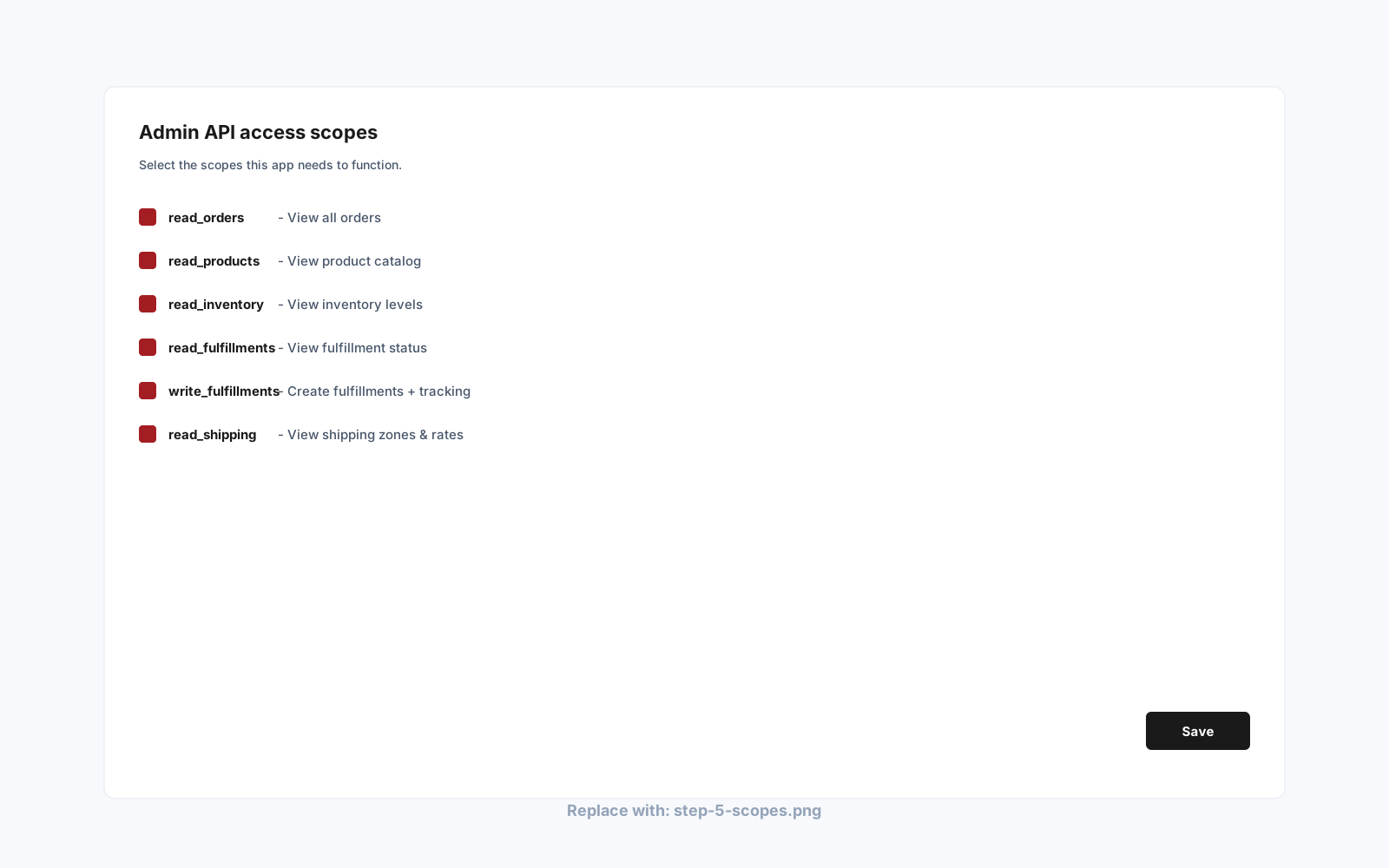
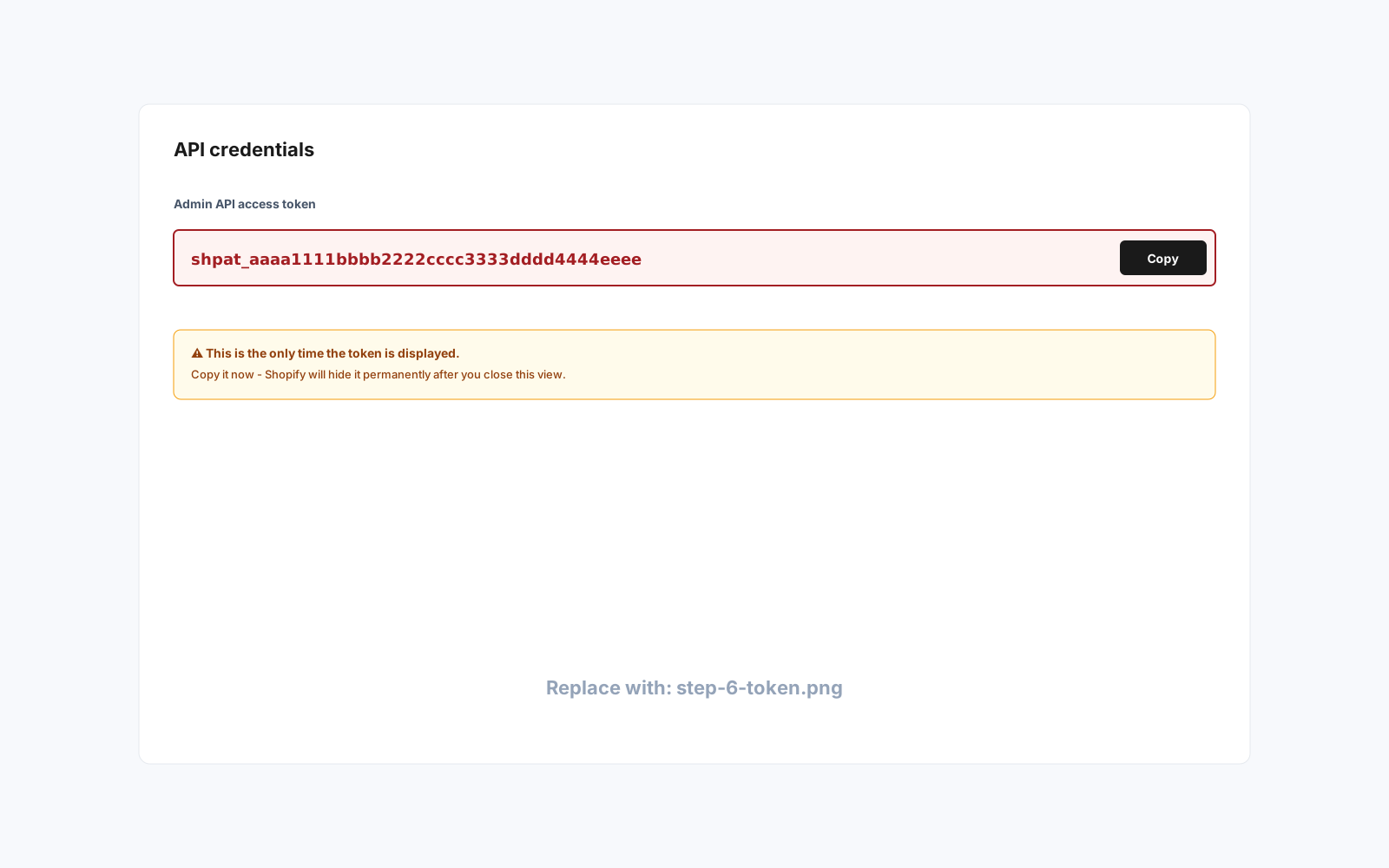
Click Install app (top right). Shopify will show your Admin API access token starting with shpat_. Click "Reveal token once" and copy it immediately.
Open the DR PREPPER USA portal, go to Connections, click Add store → Shopify, then click through to the credentials screen. Paste your store URL (yourstore.myshopify.com) and the shpat_ token. Click Connect Shopify.
Open DR PREPPER portal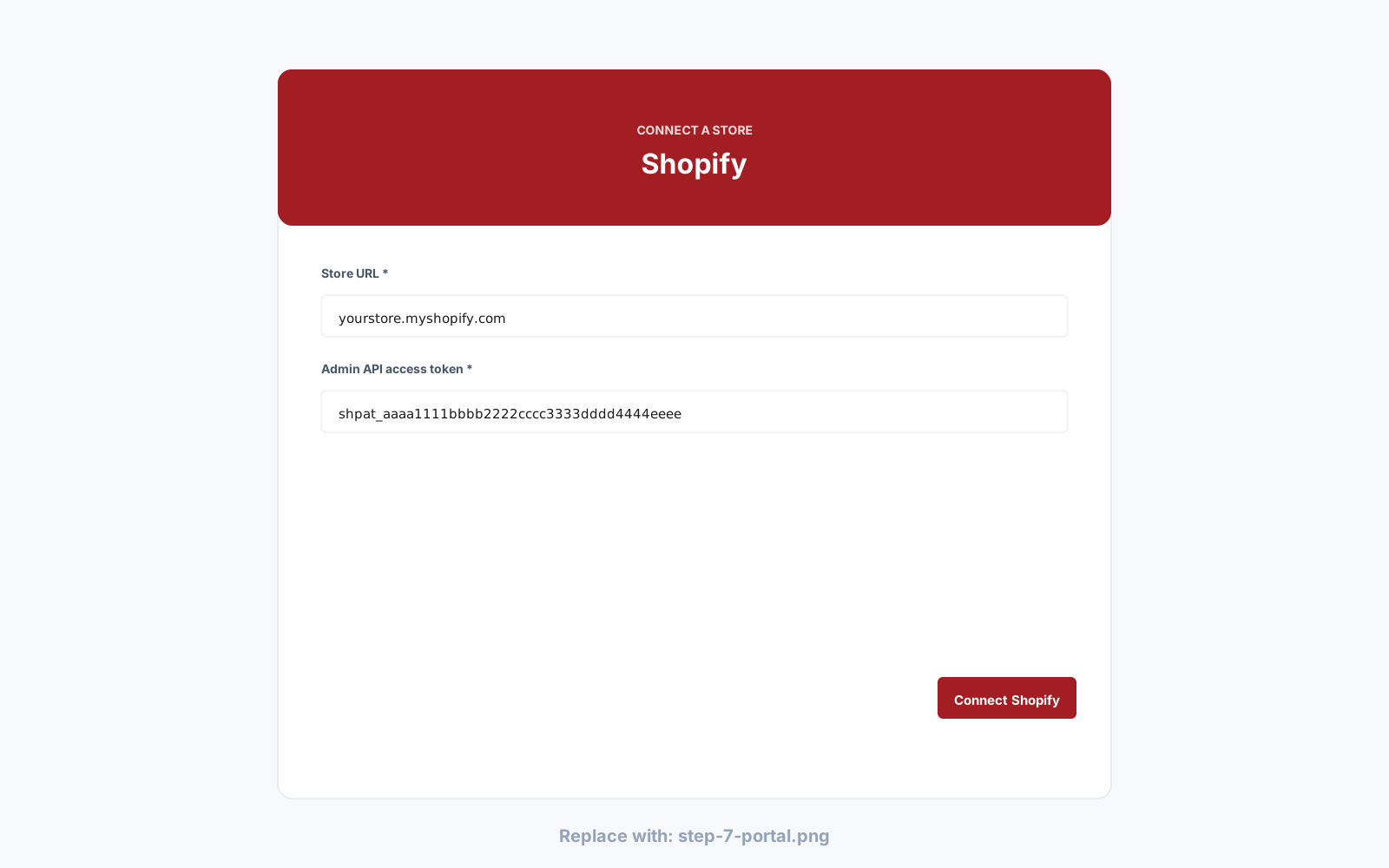
DR PREPPER USA's public Shopify app is currently in App Store review. The Custom App route is functionally identical for stores that have it enabled, takes about 5 minutes, and gives you full control - you can revoke our access at any time from your Shopify admin without contacting us.
Shopify deprecated the 'create new legacy custom app' option on January 1, 2026. If your store didn't have custom apps enabled before that date, this guide won't work. Email info@drprepperusa.com and we'll onboard you directly while we wait for our public Shopify app to clear App Store review.
Open Settings → Apps and sales channels → Develop apps. If you see a warning banner that mentions January 1, 2026, you can't follow this guide - contact us instead. If you see no banner, or a button that says Allow custom app development, you're good to proceed.
We can only do what the six scopes above allow: read your orders, products, inventory, fulfillment status, shipping zones, and write fulfillment updates back. We cannot access customer payment data, modify products, change pricing, or read anything outside those scopes. Your token is encrypted with AES-256-GCM before being stored.
Go to Settings → Apps and sales channels → Develop apps → DR PREPPER USA → Uninstall app. The token is invalidated immediately and we lose all access.
Tokens can only be viewed once. In your Custom App, click Uninstall app, then click Install app again. After reinstall, the API credentials tab will show a fresh Reveal token once button. Copy the new token and paste it into the DR PREPPER portal.
Either works, as long as the staff member has permission to manage apps. Most stores grant this to admin/manager-level staff.
We backfill your most recent 50 orders, register webhooks so new orders flow in automatically, and start syncing fulfillment status both ways. Your first orders should be visible in the portal within seconds of connecting.